Agent Setup
Claude Code | Codex | Gemini CLI | Cursor | Windsurf | VS Code Copilot | Qwen Code
Recommended
Claude Code Plugin
Native plugin — no package manager required. Tools load automatically in every session.
-
1
Get a free API key
-
2
Set your API key
export TMAI_API_KEY=your_key_here
$env:TMAI_API_KEY="your_key_here"
Run this in the terminal where you'll launch Claude Code. Generating a key above fills it in automatically.
-
3
Launch Claude Code from the terminal
claude
Use the
claudeCLI, not the VS Code sidebar extension — the plugin system requires the terminal client. -
4
Install the plugin
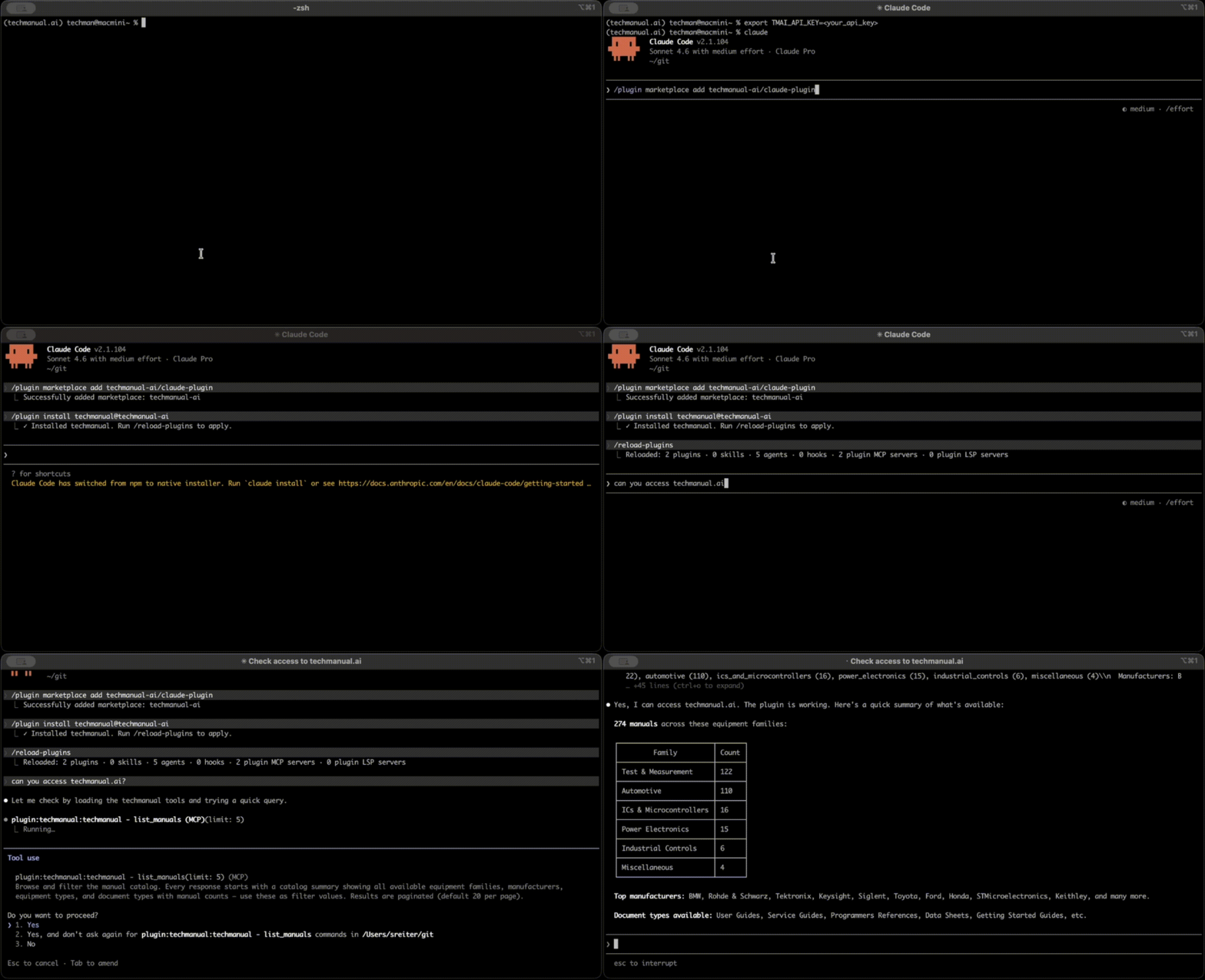
Run each command inside your Claude Code session, in order:
/plugin marketplace add techmanual-ai/claude-plugin
/plugin install techmanual@techmanual-ai
/reload-plugins
Done. The search, list_manuals, and get_page tools are now available. Claude will offer to save your API key permanently on first use — no shell profile editing required.
Recommended
Let your agent set up MCP access
Works with any platform. Paste this into your AI coding agent.
Please set up the techmanual.ai MCP server by following the steps below.

1. Generate an API key
   POST https://api.techmanual.ai/v1/keys/generate
   Body: {"label": "agent-setup"}
   Save the "key" value from the response.

2. Identify your platform
   State which platform you are, then use the corresponding config file:
   - Claude Code  → ~/.claude/settings.local.json
   - Gemini CLI   → ~/.gemini/settings.json
   - Codex        → ~/.codex/config.toml
   - Cursor       → ~/.cursor/mcp.json
   - Windsurf     → ~/.codeium/windsurf/mcp_config.json
   - Qwen Code    → ~/.qwen/settings.json
   - VS Code      → .vscode/mcp.json (project root)
   Confirm your platform and config path before writing anything.

3. Add techmanual MCP to the config
   Merge into the mcpServers object — do not overwrite other entries.

   For all platforms except Codex and VS Code:
   {
     "techmanual": {
       "command": "uvx",
       "args": ["--from", "techmanual-client", "techmanual-mcp"],
       "env": {
         "TMAI_API_URL": "https://api.techmanual.ai",
         "TMAI_API_KEY": "<key from step 1>"
       }
     }
   }

   For VS Code, use "servers" instead of "mcpServers" and add "type": "stdio".

   For Codex (config.toml), append:
   [mcp_servers.techmanual]
   command = "uvx"
   args = ["--from", "techmanual-client", "techmanual-mcp"]
   env = { TMAI_API_URL = "https://api.techmanual.ai", TMAI_API_KEY = "<key from step 1>" }

4. Confirm
   Tell me the platform detected, the config file path written, and the first 8 characters
   of the API key. Then remind me to start a new session for the MCP server to load.
Manual setup
Step 1 — Get an API key
No account required. Your key is generated instantly and shown once.
Step 2 — Claude Code (stdio MCP)
Add to ~/.claude/settings.local.json under "mcpServers":
{
  "mcpServers": {
    "techmanual": {
      "command": "uvx",
      "args": ["--from", "techmanual-client", "techmanual-mcp"],
      "env": {
        "TMAI_API_URL": "https://api.techmanual.ai",
        "TMAI_API_KEY": "YOUR_KEY_HERE"
      }
    }
  }
}
Restart Claude Code after saving the file.
Step 2 — Codex / Gemini / Cursor / Windsurf / Qwen
All of these use the same MCP server entry. Add it to your platform's config file:
- Codex:
~/.codex/config.toml(TOML format — see below) - Gemini CLI:
~/.gemini/settings.json - Cursor:
~/.cursor/mcp.json - Windsurf:
~/.codeium/windsurf/mcp_config.json - Qwen Code:
~/.qwen/settings.json
JSON config (Gemini, Cursor, Windsurf, Qwen):
{
  "mcpServers": {
    "techmanual": {
      "command": "uvx",
      "args": ["--from", "techmanual-client", "techmanual-mcp"],
      "env": {
        "TMAI_API_URL": "https://api.techmanual.ai",
        "TMAI_API_KEY": "YOUR_KEY_HERE"
      }
    }
  }
}
TOML config (Codex):
[mcp_servers.techmanual]
command = "uvx"
args = ["--from", "techmanual-client", "techmanual-mcp"]
env = { "TMAI_API_URL" = "https://api.techmanual.ai", "TMAI_API_KEY" = "YOUR_KEY_HERE" }
Step 2 — VS Code (GitHub Copilot)
Add to .vscode/mcp.json in your project root.
Note: VS Code uses "servers" instead of "mcpServers".
{
  "servers": {
    "techmanual": {
      "type": "stdio",
      "command": "uvx",
      "args": ["--from", "techmanual-client", "techmanual-mcp"],
      "env": {
        "TMAI_API_URL": "https://api.techmanual.ai",
        "TMAI_API_KEY": "YOUR_KEY_HERE"
      }
    }
  }
}
REST API (ChatGPT, LangChain, raw HTTP)
Pass Authorization: Bearer YOUR_KEY on every request.
GET https://api.techmanual.ai/v1/search?q=DC+voltage+measurement&model_number=34401A
Authorization: Bearer YOUR_KEY
Full reference: api.techmanual.ai/v1/ · llms.txt